Google Keep - Notes and lists
- 4.7
- Rating
- 1.00B
- Installs
- Free
- Price

 Analysis by App-foxy
I have always liked note apps that disappear into the background until I suddenly need one. That is the main appeal of Google Keep: it lets me capture a thought, shopping item, reminder, or small plan without forcing me into a complicated system first. As a free productivity app from Google LLC, it is aimed at the everyday moments when opening a blank document feels like too much work.
My experience with it is best summed up this way: it is excellent for quick capture and lightweight organization, but it is not a complete project-management tool or a replacement for a carefully structured notebook. That distinction matters. If you want a fast place for ideas and lists, it can become part of your daily routine very quickly. If you expect deep formatting, elaborate databases, or advanced task dependencies, you may feel restricted.
It has been available since March 20, 2013, and its broad reach is easy to understand. The app is free, carries an Everyone age rating, and has built a 4.7 average from around 2.3 million ratings. Those figures do not tell me whether it suits a particular person, but they do reflect how naturally it fits into the Google ecosystem and ordinary mobile use.
In-Depth Coverage of Google Keep - Notes and lists
Getting past the first points of friction
Before I settle on a note-taking routine, I pay attention to the moments when the interface asks me to make a choice: which kind of note to start, how to organize it, and whether a reminder is warranted. I’ll look at how a few small defaults can make those decisions easier without building a filing system that takes more effort than the notes themselves. That leads into a closer look at what to do when information is hard to locate.
Why the simple screen can still confuse new users
The first surprise is that simplicity does not remove every setup decision. A new user may see a blank collection of notes and wonder whether to begin with plain text, a checklist, a drawing, or a voice entry. I recommend starting with one ordinary note rather than trying to design a perfect filing system. Write something you genuinely need today, then let the app’s organization tools reveal themselves through use.
Another common stumbling block is treating every note as if it were a task. A note can be a temporary thought, a reference, a list, or a reminder. Those uses behave differently in practice. A grocery list benefits from checkboxes, while a short address or idea is easier to scan as plain text. When I use the wrong format, the app feels less convenient even though the information is still there.
The visual layout also encourages collecting many small notes. That is useful at first, but an unchecked pile can become noisy. I find it helpful to decide what deserves a label, what needs a reminder, and what should simply be archived after use. The goal is not to organize every sentence. The goal is to make important notes easy to find again.
Checks worth making before relying on it
Before moving important material into Keep, I make sure I am using the intended Google account and that the app is behaving consistently across the devices where I expect to read the notes. This is a basic check, but it prevents a surprisingly frustrating mistake: creating information in one account and then searching for it while signed into another.
I also test a small note, close the app, and look for it again later. That simple trial tells me more than immediately importing years of material. If a note seems missing, I check the account, search terms, labels, and archived area before assuming it was deleted. In a collection of short notes, a poor search phrase can look like data loss.
For a new setup, I would create a few deliberately different examples:
- a short plain-text idea;
- a checklist with one completed item;
- a note with a reminder for something genuinely useful;
- a labeled reference note that I will need to find again.
This small test helps identify which parts of the workflow feel natural. It also prevents the common mistake of turning Keep into a storage box without deciding how old notes will be reviewed or cleared.
Choosing labels, colors, and archives with restraint
Labels are most useful when they answer a question I might ask later, such as “Which notes relate to home?” or “Which ideas belong to work?” They become less useful when every note receives a highly specific label. I prefer a small set of broad labels and rely on search for the rest.
Colors can help with visual scanning, but I treat them as secondary signals rather than a filing system. A color may indicate urgency or context, while a label carries the more reliable meaning. If I use too many colors, the screen becomes decorative instead of informative.
Archiving is one of the most practical ways to reduce clutter without throwing information away. After finishing a travel checklist or resolving a temporary question, I can move it out of the main view while retaining the note for later reference. This is especially helpful for people who want a clean front page but are not ready to delete useful material.
Recovering a workflow when notes seem to disappear
When a note seems to vanish, I find it helps to pause before tapping around or making a replacement. I’ll walk through a calm recovery order that distinguishes a search problem from an account or sync mismatch, while avoiding duplicate edits that make the original harder to identify. The same approach also clarifies when a missing note may not be an app problem at all.
You May Also Like

 Samsung Music
Samsung Music’s Quiet Strength Is Playing What You Already Own
Its reach comes less from spectacle than from dependable access to a personal library. That simplicity is both the app’s strongest retention engine and its ceiling.

 AccuWeather: Weather Radar
AccuWeather Review: A Quick, Clear Forecast for Everyday Decisions
For everyday plans, the best forecast is the one you can understand quickly. AccuWeather makes rain timing, radar, and local conditions easy to act on, with a few trade-offs.

 Hill Climb Racing
Why Hill Climb Racing Still Turns Crashes Into One More Run
A tiny car, a bumpy hill and one more upgrade: Hill Climb Racing keeps resurfacing because its simple chaos makes every near-miss feel personal.

 AliExpress - Shopping App
AliExpress Makes Global Shopping Feel Personal, but Shoppers Bear the Risk
AliExpress turns a global marketplace into a pocket-sized discovery engine. Its reach is useful, its shopping loop compelling, and its trade-offs easy to miss.

 Lords Mobile: Kingdom Wars
Lords Mobile Is a Kingdom-Building Routine, Not a Quick Match
A case-by-case verdict on the building, battles, device demands, and social commitments that make Lords Mobile rewarding for some players and exhausting for others.

 PDF Scanner app - TapScanner
TapScanner Makes Paperwork Easier to Capture, Check, and Share
TapScanner makes scanning with a phone feel less like a rescue operation and more like a dependable step in getting work done. Its capture tools are useful, though not flawless.
More From Our News Desk



A sensible order for finding a missing note
When I cannot see a note, I avoid immediately recreating it. I first search for a distinctive word rather than a vague topic. Then I look through labels and archived material, and I check whether the note was converted into a checklist or grouped visually among many other cards. This sequence is faster than scrolling through everything.
If the note was recently removed, I look for the app’s deleted-items area before doing anything else. I also consider whether I edited the original note or accidentally created a second version. Duplicate notes are easy to make when capturing ideas quickly, especially if the first attempt appears not to have saved.
For important information, I use a recovery habit rather than relying on memory. At the end of a planning session, I search for the key phrase I expect to use later. If the result appears, I know the note is stored where I expect it to be. This takes only a moment and is more reliable than assuming a successful tap means a successful workflow.
Making lists work in real life
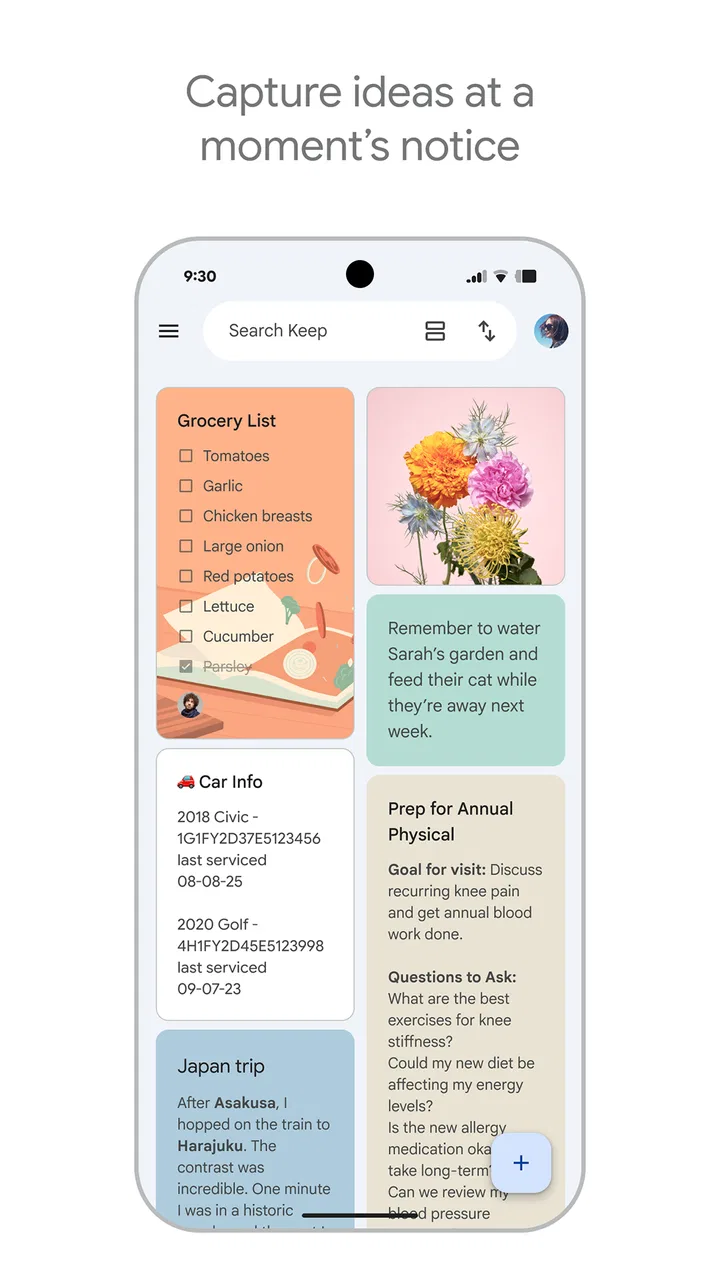
Keep is particularly comfortable for lists that change during the day. My preferred method is to put one actionable item per line, keep wording short, and move completed entries out of the way as I go. A list such as “buy batteries, call the clinic, send the form” is easier to use than a paragraph containing the same information.
A useful but easy-to-miss trade-off is that a checklist is not automatically a full task system. Checking an item off gives me a clear sense of progress, but it does not by itself create a broader plan with dependencies, project stages, or detailed scheduling. For a grocery run, that simplicity is a strength. For coordinating a long renovation or a multi-person work project, it becomes a limitation.
I also avoid placing unrelated areas of life into one enormous checklist. Separate notes make it easier to pause one activity and return to another. A household list, a packing list, and a meeting preparation list may all be simple, but they should not compete for attention in the same note.
Using reminders without turning every note into an alarm
Reminders are most valuable when a note needs to return to my attention at a meaningful time or place. I use them for things I might otherwise forget, not for every loose idea. If every note generates an alert, the reminder system loses its value and begins to feel like background noise.
My practical rule is to write the action clearly before setting the reminder. “Prepare documents for appointment” is more useful than “appointment,” because the note tells me what to do when it reappears. This small wording change turns a prompt into a usable next step.
I also review old reminders occasionally. A postponed task can remain visible long after it is relevant, and repeatedly rescheduling it is not the same as deciding what to do. Keep can bring a note back to me, but I still have to make the judgment about whether the task matters.
Voice, drawing, and quick capture
One reason I return to Keep is that it supports different ways of capturing information. Typing is not always practical when I am walking, cooking, or trying to preserve an idea before it disappears. A voice entry can be useful in those moments, while a drawing or handwritten-style note makes more sense for a rough sketch, a visual reminder, or a quick diagram.
The trade-off is retrieval. A rapidly captured note may contain the right information but lack the clean wording I would use later when searching. I try to add a short descriptive phrase after the moment has passed. That extra cleanup step makes voice and visual notes much more useful over time.
This is one of the app’s strongest everyday workflows: capture first, organize lightly, refine only the notes that survive the day. It respects the way people actually think instead of demanding that every idea arrive in finished form.
When the app is not the real cause of the problem
A confusing result can come from the surrounding setup as much as from the app: the account in use, the device, or the way a note was captured can all change what I see. I’ll separate those possibilities before judging the tool, then consider the situations where Keep’s lightweight approach is genuinely useful—and where another kind of app is a better fit.
Separating account issues from app issues
When notes appear inconsistent between devices, I first ask whether the problem is tied to the account rather than the application itself. A different signed-in account, a delayed connection, or a device that has not refreshed can create the impression that content has vanished. Checking the account identity and looking again after a short pause is a safer first step than repeatedly editing or deleting notes.
I am careful with important material during this check. I do not create several replacement copies while trying to solve the problem, because that can produce confusion about which version is current. Instead, I write down a distinctive phrase from the original note and use it to search once the account and connection look correct.
Knowing where Keep stops being the right tool
Keep is not my first choice for long-form writing. A long article, detailed research file, or document that needs extensive formatting is more comfortable in a dedicated word processor. Keep is built around small, quickly readable pieces of information, and forcing it to hold a large manuscript works against that design.
I would also choose a more structured task manager for projects involving due dates, recurring work, priorities, subtasks, or collaboration rules. Keep can hold the notes around a project, but it does not replace a system designed to show progress across many moving parts.
For sensitive information, I think carefully before using any general note app. Passwords, recovery codes, and similarly critical secrets belong in a purpose-built secure tool rather than an ordinary capture space. Keep is convenient, but convenience should not decide how high-risk information is stored.
How it compares with familiar alternatives
Compared with a traditional paper notebook, Keep is easier to search, easier to revise, and less likely to leave an old list buried in a drawer. Paper still wins for people who think best by writing freely across a page or who want a completely offline physical object.
Compared with a full document editor, Keep is faster for short notes and less demanding when I am on a phone. A document editor wins when formatting, page structure, comments, or long reading sessions matter.
Compared with a dedicated task manager, Keep feels lighter and more flexible. That is exactly why I like it for errands and spontaneous ideas, but also why I would not use it as the central control panel for a complex project. Its strength is reducing the distance between thought and capture, not managing every layer of a plan.
My practical verdict after using it as a daily capture tool
Google Keep works best when I treat it as a quick-thinking companion rather than a universal information system. I can open it, record an idea, build a short checklist, add a reminder, and return to the note later without navigating a heavy structure. For students, busy households, casual planners, and anyone who regularly forgets small tasks, that low friction is genuinely valuable.
Its scale also gives it a familiar place among mainstream productivity tools. It has passed one billion installs, and its free availability removes the need to make a financial commitment before testing the workflow. The Everyone rating makes it suitable for a broad audience, although suitability still depends on how responsibly each person handles private information.
The best results come from a few habits: choose the correct account at setup, use short searchable wording, keep labels broad, archive finished material, and review reminders instead of endlessly postponing them. I would also test recovery with an unimportant note before trusting the app with a large personal system. These steps address most of the friction I encounter without turning the app into a chore.
My honest recommendation is simple. Try it if you want a fast, flexible place for everyday thoughts and lists, especially if you already use Google services and value quick searching over elaborate structure. Skip it as your primary tool if you need advanced project tracking, rich document formatting, or a dedicated home for highly sensitive secrets. For everyone in between, the free price makes experimentation easy, and the app earns its place by making small acts of organization feel almost effortless.
FAQs for Google Keep - Notes and lists
01What features does Google Keep offer for note-taking?
Google Keep provides a suite of features designed to enhance note-taking. Users can create text notes, checklists, voice memos, and even draw sketches. The app allows for easy organization with labels and color-coding. Integration with other Google services, like Google Drive, ensures seamless syncing across devices, making it ideal for both personal and collaborative use.
02Is Google Keep available offline, and how does it sync data?
Yes, Google Keep offers offline access, allowing users to create and edit notes without an internet connection. Once you're back online, the app automatically syncs your changes across all devices linked to your Google account. This ensures you never lose your notes and can access them from anywhere, anytime.
03Can I collaborate with others using Google Keep?
Absolutely, Google Keep enables collaboration by allowing you to share notes with others. You can invite collaborators via email, granting them access to view and edit the note. This feature is particularly useful for group projects, shopping lists, or any task that requires team input and real-time updates.
04How secure is my data on Google Keep?
Google Keep uses the same robust security infrastructure as other Google services, ensuring your data is protected. All notes are encrypted in transit and at rest. However, as with any online service, it's crucial to use strong passwords and enable two-factor authentication on your Google account to enhance security.
05What are the limitations of using Google Keep for note-taking?
While Google Keep is versatile, it has some limitations. The app is not ideal for complex document editing, lacks advanced formatting tools, and has a simple interface that may not suit users seeking extensive customization. Additionally, there’s a limit on the number of notes and labels, which may be a constraint for heavy users.
Pros
- Simple and intuitive user interface.
- Seamless integration with Google services.
- Easy sharing and collaboration features.
- Voice notes and reminders support.
- Cross-platform synchronization.
Cons
- Limited formatting options for notes.
- No advanced organizational features.
- Offline access can be limited.
- Lacks rich media handling.
- No direct integration with some apps.

Google Keep - Notes and lists
Gallery